How to Check Data Freshness in Tableau: Validate If Your Dashboards Are Up to Date

How do you ensure data freshness in Tableau?
Ensuring your Tableau dashboards always display the most up-to-date data is essential for confident business decision-making. Yet, data refreshes can fail, whether due to issues with data source loading or missed extract refresh alerts, leaving users at risk of acting on outdated information. For organizations, delivering timely and accurate insights to stakeholders is not just a technical necessity, but a strategic advantage. Business leaders rely on dashboards to make informed decisions. If the data is outdated, those decisions may be flawed, leading to missed opportunities or costly mistakes. Manual data validation is time-consuming, error-prone, and often overlooked, especially in fast-paced environments.
Wiiisdom for Tableau allows teams to automate data freshness checks, eliminating manual processes and reducing the risk of errors. By leveraging advanced validation and integration capabilities, you can guarantee that your dashboards reflect the latest data, fostering trust and driving user adoption. In this article, we’ll explore how Wiiisdom for Tableau streamlines and automates the process of testing the data in your Tableau environment.
What Are The Limitations of Manual Data Freshness Validation in Tableau?
Validating whether a Tableau dashboard is using fresh data becomes unreliable when the process depends on manual checks or basic Tableau indicators. Most teams rely on data source refresh timestamps and backend failure alerts, but these don’t guarantee that the visualization itself reflects up‑to‑date information.
Here are the key issues:
1. Front-End Users Lack Visibility
Backend teams may receive pipeline or extract failure alerts, but dashboard consumers usually don’t, leaving them unaware when data is outdated.
2. Alerts Are Easy to Miss
Email-based alerts often get lost among hundreds of automated notifications, meaning critical data issues can go unnoticed.
3. Inconsistent Freshness Logic Across Dashboards
Different dashboards may use different date fields or filters, making it hard to ensure a consistent, organization-wide definition of “fresh” data.
4. How to Validate if Your Data is Up To Date on Your Tableau Dashboards
Opening dashboards, applying filters, and visually confirming if data is present quickly becomes time-consuming and error‑prone as dashboard volume grows.
5. Limited Notification Options
Tableau’s native alerts rely heavily on email and don’t integrate smoothly with tools like Slack, Microsoft Teams, or ticketing systems, which many organizations use.
Automatically Validate Your Tableau Dashboard Data
To automatically validate your Tableau dashboard data, we recommend the following steps:
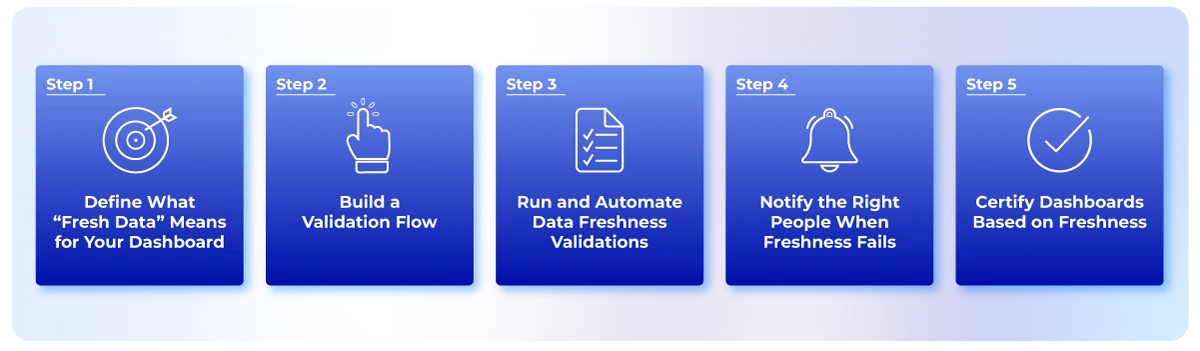
Step 1: Define What “Fresh Data” Means for Your Dashboard
Data freshness isn’t one-size-fits-all. Depending on your environment, freshness may depend on:
- Extract refresh timing
- ETL/ELT pipeline completion
- Warehouse table updates
- Slow‑changing dimension updates
- The presence of today’s or yesterday’s records in the dashboard itself
Before automating validation, specify the freshness rules that matter to your dataset or dashboard. For example: “My data source must refresh within the last 8 hours.” or “A fact table must include today’s records.” Wiiisdom allows you to combine these rules as needed.
Step 2: Build a Validation Flow
Instead of manually opening dashboards, setting filters, or inspecting data, you can build a lightweight validation flow in Wiiisdom for Tableau that mirrors what users expect to see. A typical validation flow includes:
1. Validate Extract Freshness
Check whether the published data source refreshed within the expected window. This step detects failures that may not be visible to the end user.
2. Validate Pipeline Freshness
Confirm upstream ETL/ELT jobs were completed successfully. If any pipeline failed, you’ll know before users open the dashboard.
3. Validate Table or Semantic Layer Freshness
Ensure that key warehouse tables were updated on time. This covers scenarios where the extract is refreshed, but from stale source tables.
4. Validate Dashboard Data Using Assert Data Rules
The Assert Data Rules task runs logical checks on the dataset behind a specific worksheet, based on user-defined rules. You can run the following three checks in Wiiisdom for Tableau:
- Basic sanity checks (i.e. Nb. of Rows > 0; does it have any data?)
- Column-based rules (i.e. [Transactions] > 0 ; does a specific KPI makes sense?)
- Complex dynamic data validations using Excel-like formulas on the underlying data (i.e. [Net Sales Value] * (1 + [VAT]) = [Gross Sales Value]; do the calculated fields in the workbook work as expected?)
To check if today’s data is on the dashboard we will use the following formula: [DAY(Effective Date)] = TODAY(). Wiiisdom for Tableau will download the underlying data from the specified worksheet and will evaluate this formula in each row. If it doesn’t find any row where the formula is TRUE then today’s data is not on the dashboard and the test will fail.
You will, of course, need to tailor the formula to your requirements. For example, if you want to check yesterday’s data instead, or if you want to add that as an extra check just replace it or add another formula that looks like this: [DAY(Effective Date)] = TODAY() – 1. Also, be sure to use the column names that represent dates specific to your dashboard.
Step 3: Run and Automate Data Freshness Validations
Once your validation flow is configured, you can:
- Run it manually
- Schedule it daily (e.g., every morning at 8 AM)
- Trigger it via CI/CD tools
- Or run it whenever upstream pipelines complete
Each run evaluates every freshness rule you defined, across extracts, pipelines, tables, and dashboard data. If a single component fails, the validation alerts you.
Step 4: Notify the Right People When Freshness Fails
When a validation rule fails, Wiiisdom can automatically notify your team, through Slack,
Microsoft Teams, email, or ticketing systems. This ensures the right people are informed the moment a freshness issue occurs, long before a business user finds an outdated dashboard.
Step 5: Certify Dashboards Based on Freshness
Wiiisdom allows you to certify dashboards based on freshness, and automatically de‑certify them if rules fail. This gives your BI team a powerful governance mechanism:
- Fresh dashboards stay certified
- Stale dashboards automatically lose certification
- Business users instantly know whether they can trust what they’re viewing
Schedule and Integrate
Once you are happy with the data validations you will want to run it automatically, for example, every morning at 8 am. You can Schedule Test Runs from Windows Task Scheduler, Cron or you can trigger it from CI tools like Jenkins, Bamboo, etc. Also, if you want to inform people in your organization if something is wrong with the data, you can use the Wiiisdom for Tableau built-in integrations that will send messages via e-mail, Slack, Teams, or other third-party applications.
Ready To Automate?
Although Tableau allows you to check your dashboard data is up-to-date, it is a manual process that takes time and has the potential for errors. Thanks to Wiiisdom for Tableau, this can all be automated ensuring your Tableau dashboards are displaying the latest data and your business users can trust the data to make the best business decisions.
Curious to see this in action? Get in touch with us.